Connecting to your database using SSH
For some enterprise setups, you’ll need to connect to your database using SSH. SSH, “secure shell”, is a way for your laptop to communicate to a database on a remote server— think of it as a tunnel. Here’s how.
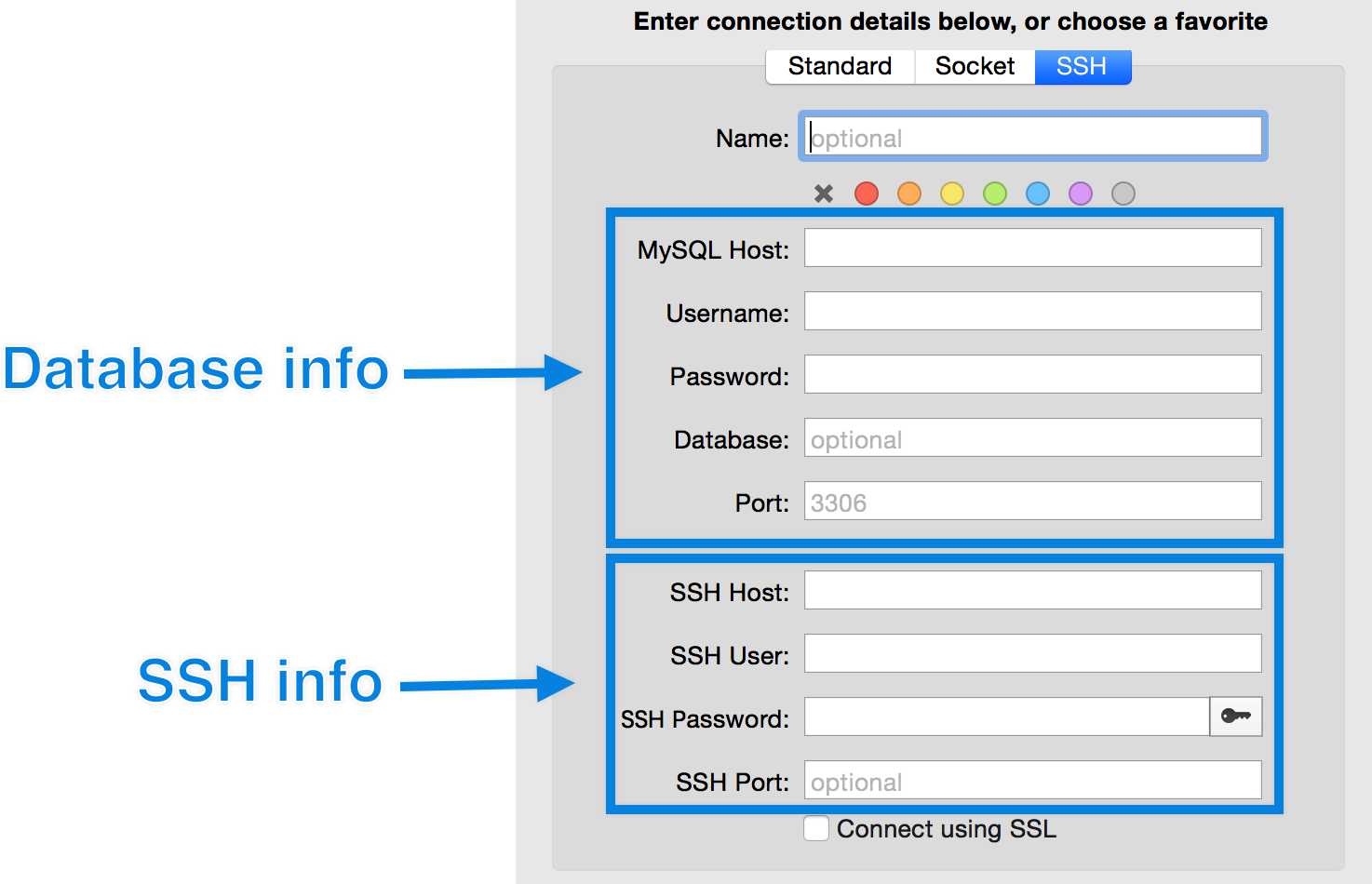
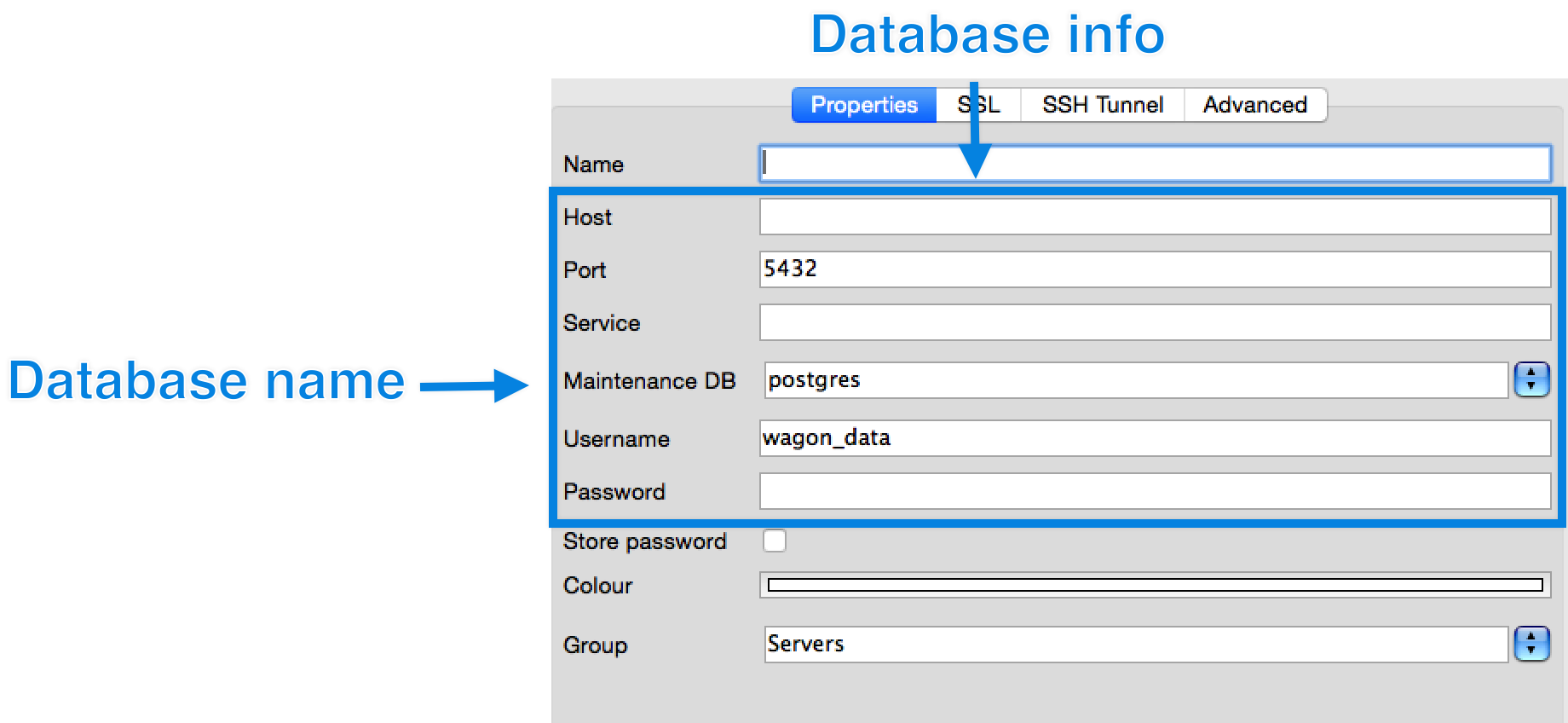
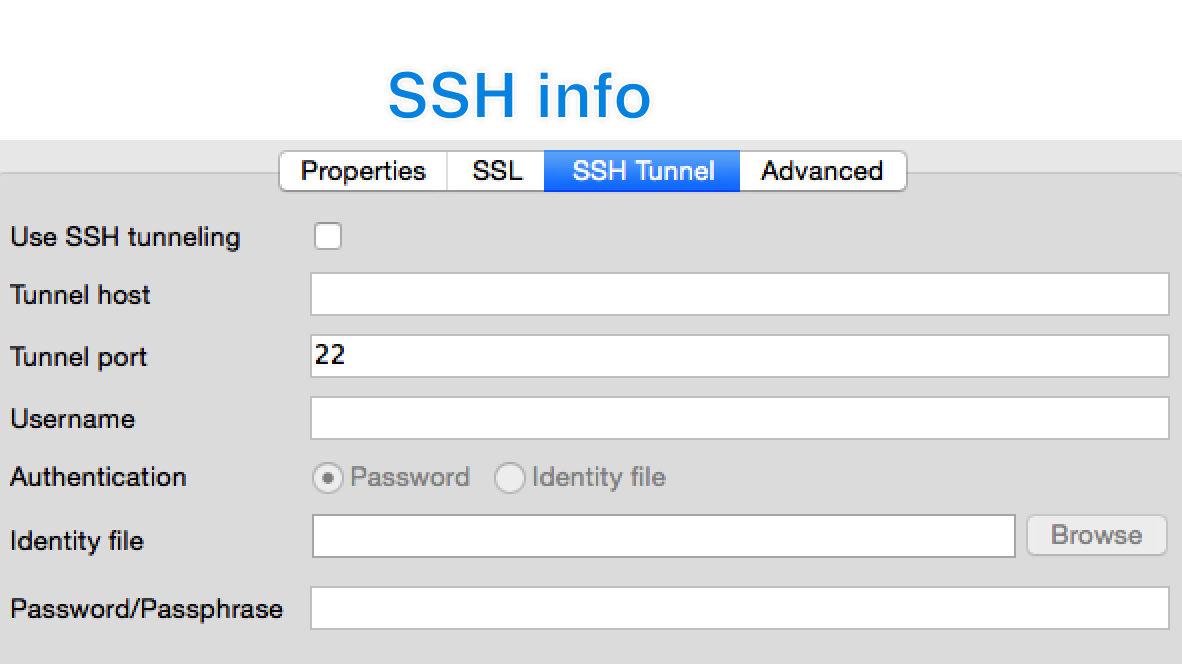
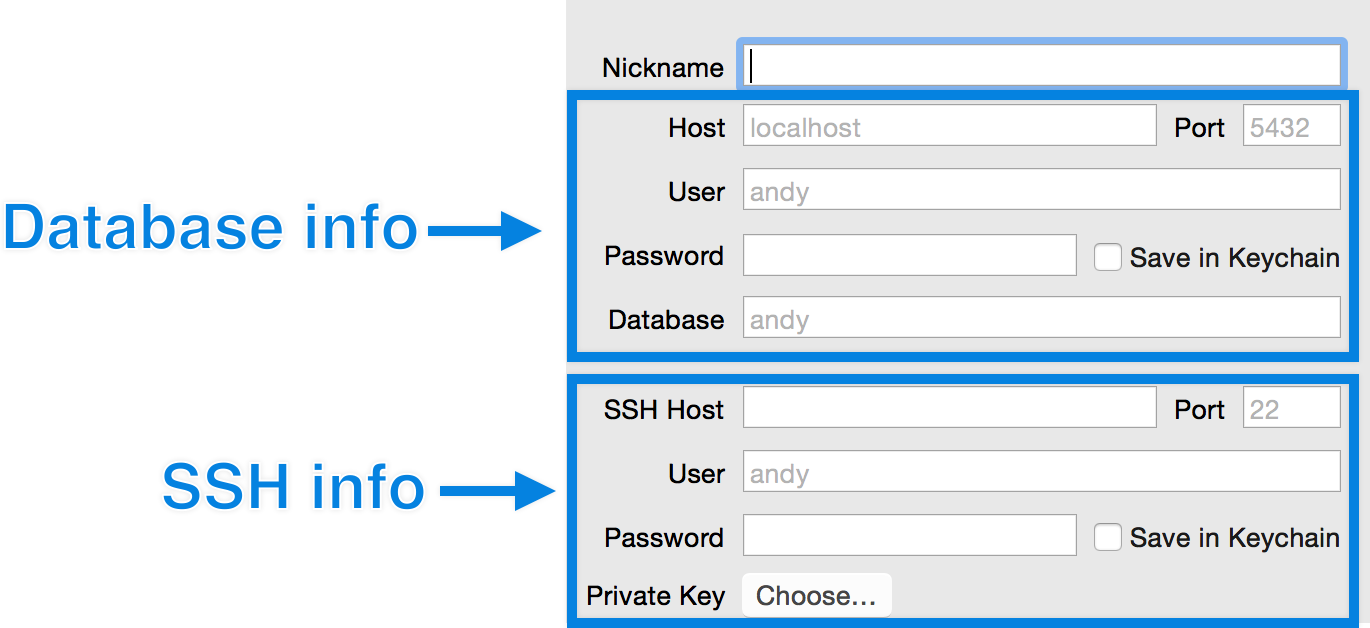
If you’ve used Sequel Pro, pgAdmin, or Postico, see the screenshots below. Otherwise, ask a teammate, check the company wiki, or talk to your tech / IT folks.
- You’ll need your SSH info
- SSH host: the address of the remote server
- SSH username: your username to login to the remote server
- SSH password or key: a password or key (a file)
- You’ll need your database info:
- Database host: the address of the database relative to the remote server
- Often, the database is running on the SSH machine, so the database host is
localhost
- Often, the database is running on the SSH machine, so the database host is
- Database port: the port number the database is running on
- Database name: the name of the database
- Database username
- Database password
- Database host: the address of the database relative to the remote server
SSH info from other tools
Mac Instructions
- You’ll need to manually open the SSH tunnel. Open Terminal.app:

- Run a command to open a SSH connection to the remote server and begin forwarding requests from your localhost to the remote database
ssh ssh_username@ssh_hostname -L5434:database_hostname:database_port- You should be prompted for a password
- In Wagon, connect via your localhost SSH tunnel:
- Hostname: localhost
- Port: 5434
- Use your standard database credentials for name, username, and password.
If you’re in the mood to learn more about SSH, here’s a cute whiteboard video on how SSH works.